Documentation · Getting started
Set up with your AI
Finish setting up GiftWell by talking to Claude, ChatGPT or another assistant. Copy one prompt, paste it, sign in, and it works through each step with you.
For: LeaderPastorAdminOwner
See this screen in the demo church
As soon as you've signed up, the first setup screen offers Copy for Claude, with ChatGPT, Claude Code, Cursor and any other assistant in the menu beside it. Every later step has the same button in the left column, so you can switch to your AI at any point.
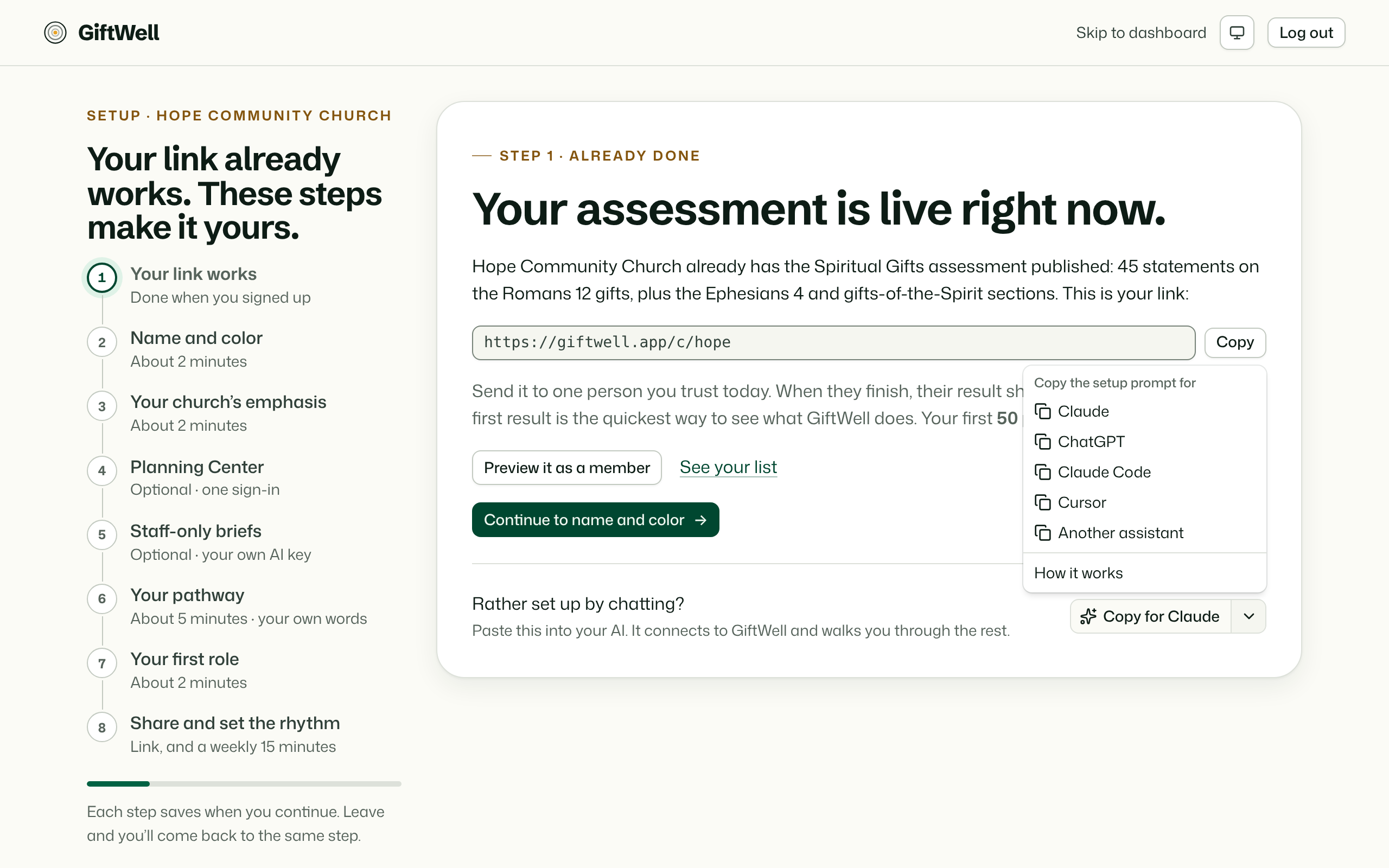
What you copy
One prompt, written for the assistant you picked. It holds:
- how to connect GiftWell in that assistant, with GiftWell's server address (
/mcp), - which GiftWell tool does each setup step (update-church, find-ministries, save-pathway, save-role and the rest),
- links to the screens for the few things no tool does: your colors and logo, how you talk about gifts, signing in to Planning Center, your own AI key and the weekly digest,
- links to these docs as Markdown, starting with the index for agents, so the assistant can read how GiftWell works.
It holds no password, key or token. Paste it into a new chat.
Connecting
The first time, your assistant asks you to add GiftWell as a connector and sign in:
| Assistant | Where |
|---|---|
| Claude | Settings, Connectors, Add custom connector. |
| ChatGPT | Settings, Apps & Connectors, Advanced settings, Developer mode, then Create, with OAuth. |
| Claude Code | It runs claude mcp add itself. Then /mcp, Authenticate. |
| Cursor | It adds GiftWell to .cursor/mcp.json. Then Needs login in Cursor's MCP settings. |
ChatGPT, step by step
- On the first setup screen, open the menu beside Copy for Claude and choose ChatGPT, then Open ChatGPT.
- In ChatGPT, open Settings, then Apps & Connectors, then Advanced settings, and turn on Developer mode.
- Back in Apps & Connectors, press Create. Name it GiftWell, paste
https://giftwell.app/mcpas the URL, and choose OAuth. - GiftWell opens its sign-in. Sign in, pick your church, and press Allow.
- Start a new chat, add GiftWell to it, and paste the prompt.
ChatGPT moves its menus from time to time. If a name above doesn't match, look for connectors or developer mode in its settings.
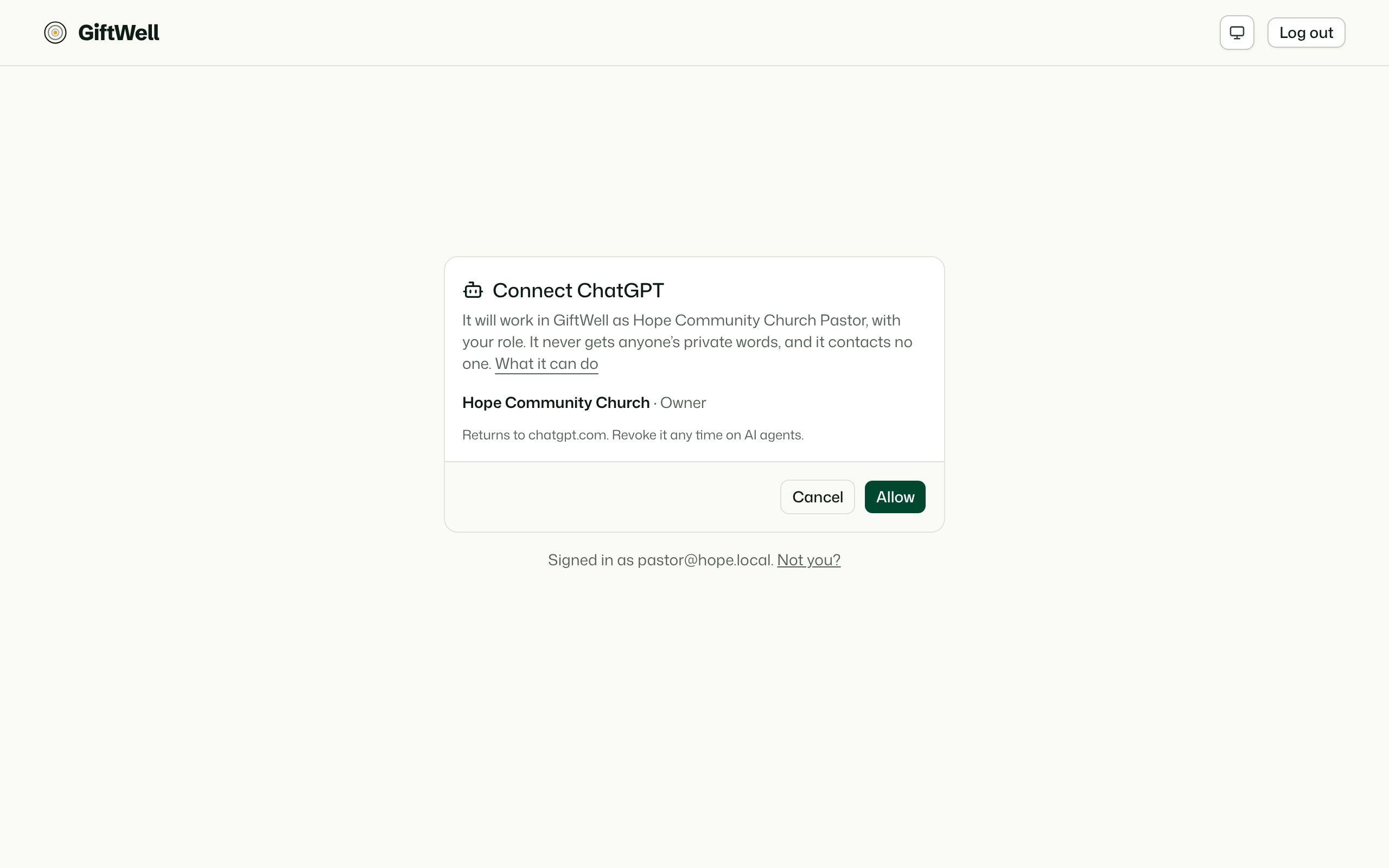
If you belong to more than one church, pick one. The connection works as you, with your role in that church. It appears on AI agents as (signed in), where you can revoke it any time. It renews itself while you use it and ends after 90 days without use. Signed in as the wrong person? Press Not you? to sign in as someone else and come back to the same screen.
An assistant that can't sign in can still use a token you make on AI agents.
What it will and won't do
It asks before it saves, and shows you what it will save. It can do anything your role could do on the setup screens, and no more. Like every agent it never sees a person's private words, never contacts anyone, and never writes to Planning Center. See what an agent never gets.
Finishing in your AI and finishing on the screens are the same: each step saves to the same place, and get-setup tells the assistant what is still left.
Try it on your own church
Your assessment link works the minute you sign up. The first 50 people are free, and there is no card to enter.
This page as Markdown, for notes or an AI assistant.